
How to Use Fliki to Create AI Videos: Step-by-Step Guide
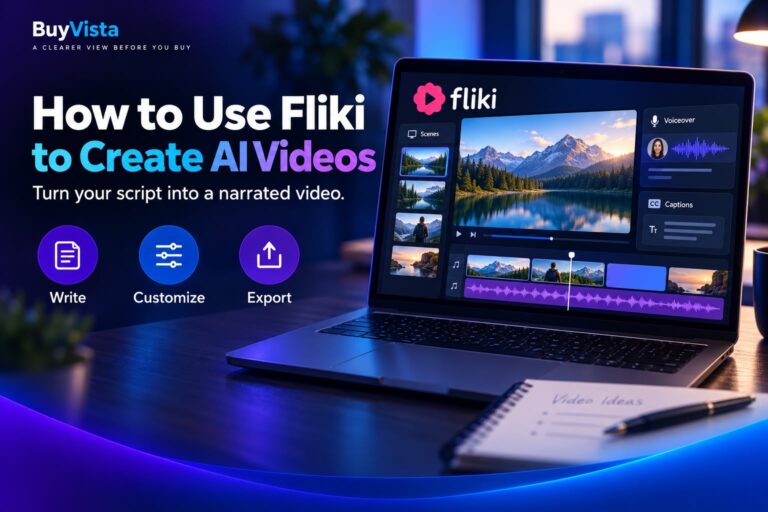
Fliki is an AI-powered platform that turns written content into videos with voiceovers, visuals, music, and subtitles. It can help creators and businesses produce narrated content without recording every scene or voiceover themselves.
In this guide, we’ll show you how to use Fliki to create AI videos, from setting up your account to reviewing and downloading your finished video.
What Is Fliki?
Fliki is a browser-based content creation tool that combines AI video generation and text-to-speech.
You can start with a script, an idea, a blog post, or a presentation and turn it into a video with narrated scenes.
The platform also offers editing tools, voice options, stock media, and AI-generated visuals. Available features depend on your subscription.
How to Use Fliki to Create AI Videos
Step 1 — Create a Fliki Account
Start by creating a Fliki account.
Fliki offers a free plan, so you can explore its basic video creation tools before choosing a paid subscription.
After signing in, complete any introductory questions and open your workspace.
Step 2 — Choose Your Video Creation Method
Choose a video workflow based on the content you already have.
For this tutorial, start with the script-to-video option. If you only have a topic, the idea-to-video workflow can help develop an initial draft.
Starting with a prepared script gives you more control over the message.
Step 3 — Enter Your Script
Paste your script and select the available language and video preferences.
For a first project, try a short explanation of one topic. Give it a clear opening, a useful main point, and a simple ending.
Review names, numbers, and claims before generating the video.
Step 4 — Review the Generated Scenes
Fliki organizes the content into scenes.
Check the sequence and edit any lines that need improvement. Each scene should communicate one clear idea.
For example, a product introduction might use separate scenes for the problem, the product, and its main benefit.
Step 5 — Choose Your AI Voice
Listen to the available voices and select one that suits your content.
Check pronunciation, language, and delivery. A training video may benefit from a measured voice, while a short social video may need a more energetic presentation.
Review the narration after making changes.
Step 6 — Customize the Visuals and Format
Replace visuals that do not match the narration. You can work with the media options available in your account.
Choose a format suited to your destination:
* Portrait — 9:16: Reels, TikTok, and YouTube Shorts.
* Landscape — 16:9: standard YouTube videos and website content.
* Square — 1:1: square social media posts.
Keep important text away from the edges.
Step 7 — Preview Your Video
Play the complete video before exporting.
Check the voiceover, scene order, subtitles, visuals, and background music.
Make sure viewers have enough time to read on-screen text. If you use music, keep it low enough for the narration to remain clear.
Step 8 — Export and Download
When the video is ready, open Download and choose your available export settings.
Select Start export to render the video, then download the finished file.
Resolution, watermark removal, and other export options depend on your plan. Watch the downloaded version once before publishing.
What Can You Use Fliki For?
Fliki can support different types of video content, including:
* YouTube videos
* Instagram Reels
* TikTok videos
* Product explainers
* Educational lessons
* Training videos
* Marketing content
* Narrated presentations
* Videos based on existing blog posts
Choose one purpose for each video rather than trying to explain everything at once.
Is Fliki Free?
Yes. Fliki currently offers a Free plan with 3 credits per month, limited features, and watermarked video exports.
Standard and Premium subscriptions provide larger credit allowances and additional capabilities, including higher-resolution exports and commercial usage rights.
Credit consumption varies with the features and generation settings used. Regenerating content can also consume credits, so review your script before making repeated changes.
Pricing and plan features can change. Check the current allowances and usage terms before subscribing or publishing commercial content.
Tips for Better Fliki AI Video Results
For better results:
* Start with a short, focused script.
* Use natural sentences that sound clear when spoken.
* Check facts before generating narration.
* Match each visual to the point being explained.
* Listen for pronunciation errors.
* Keep subtitles readable on a phone.
* Preview the complete video before exporting.
* Monitor your remaining credits.
A clear script and a careful final review can make the video more useful than adding unnecessary effects.
Is Fliki Worth Trying?
Fliki brings narration, visuals, and video editing into one workflow, making it a useful option for turning written content into narrated videos.
The free plan provides a starting point for exploring the process, although its limits and watermark should be considered before planning regular production.
If you want to create explainers, educational videos, or social content without recording every element yourself, Fliki is worth testing with a small project first.
Related BuyVista Guides
Fliki Review
Read our complete Fliki review, including its features, pricing structure, pros, cons, and who the platform is best for.