
How to Use GetResponse for Email Marketing Automation: Step-by-Step Guide
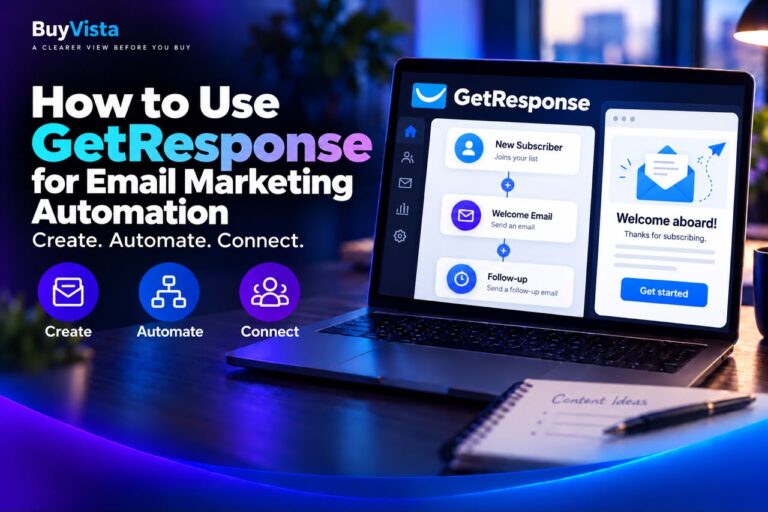
GetResponse helps businesses collect subscribers, create email campaigns, and automate messages based on specific actions.
In this guide, we’ll show you how to use GetResponse for email marketing automation, from setting up your account to publishing a simple workflow that welcomes new subscribers.
What Is GetResponse?
GetResponse is an email marketing and automation platform that combines email creation, contact management, signup forms, landing pages, and automated workflows.
Its automation builder lets you connect conditions and actions to decide when subscribers receive a message.
For example, you can automatically send a welcome email when someone joins your list. More advanced workflows can include follow-up messages, engagement conditions, and segmentation, depending on your plan.
How to Use GetResponse for Email Marketing Automationt
Step 1 — Create a GetResponse Accoun
Start by creating a GetResponse account and completing the account setup.
GetResponse offers a free account with an initial trial of premium features, allowing you to explore automation before choosing a paid subscription.
Check the automation features included in your account before building your workflow.
Step 2 — Set Up Your Sender Details
Configure the email address and sender name that subscribers will see.
Use a recognizable name associated with your business and a reply-to address you monitor.
If you use your own domain, follow GetResponse’s instructions to verify your sending address and configure domain authentication, including DKIM and DMARC.
Completing this setup helps email providers verify your messages, although it does not guarantee inbox placement.
Step 3 — Prepare Your Contact List and Signup Form
Choose or create the contact list that will receive your new subscribers.
Give it a clear name so you can identify it when configuring your automation.
Next, create a signup form through Forms and popups and connect it to the appropriate list. You can place the form on your website or use a suitable GetResponse landing page.
Explain what people will receive when they subscribe.
For example:
“Subscribe to receive practical marketing tips and our free email planning checklist.”
Only add contacts who have given you permission to send them marketing emails.
Step 4 — Create Your Automation Workflow
Open Automation and select Create workflow.
You can start from scratch or choose a prebuilt template.
For your first workflow, select Simple welcome message from the welcome templates.
This template uses two main elements: a subscription condition and a message action. It provides a straightforward starting point before you add more complex sequences.
Save the workflow as a draft while you prepare your email.
Step 5 — Create Your Welcome Email
After creating your first workflow, you can access Automation messages from the Automation section.
Select Create automation message, enter an internal name, choose your sender and reply-to addresses, and write a subject line.
Then open Design message to build the email.
A useful welcome email should:
* Thank the subscriber for joining.
* Deliver any resource promised on the signup form.
* Explain what future emails will contain.
* Provide one clear next step.
For example, your subject line could be:
“Welcome — here’s your email planning checklist”
Keep the design simple and check that the content is easy to read on mobile.
Save and finish the message when it is ready.
Step 6 — Configure the Subscription Trigger and Message
Return to your workflow and select the Subscribed via condition.
The Simple welcome message template initially accepts subscriptions from any list and method. Adjust these settings to match the list and signup method you want to use.
Next, select the Send message action and choose your completed welcome email.
Review both elements carefully. Selecting the correct list prevents the workflow from welcoming subscribers who joined through an unrelated campaign.
Step 7 — Test and Publish Your Workflow
Send yourself a test message and check the subject line, formatting, links, and resource delivery.
Confirm that the email includes the appropriate footer and unsubscribe option.
When the workflow is configured, publish it.
Then complete a fresh signup using a test email address you control. If your form requires subscription confirmation, complete that step too.
Check that the contact enters the intended list and receives the correct welcome message.
Step 8 — Review Performance and Expand Gradually
Review the available automation message statistics to understand how subscribers interact with your email.
Pay attention to link clicks, delivery problems, and whether people reach the resource you promised.
Once the basic workflow works reliably, consider adding a delayed follow-up with another useful tip or resource.
Check your plan before expanding. GetResponse currently limits Starter users to one custom workflow with up to six elements, while higher plans offer broader automation capabilities.
What Can You Use GetResponse For?
Depending on your plan and integrations, GetResponse can help you:
* Welcome new subscribers
* Deliver guides and downloadable resources
* Build email onboarding sequences
* Send educational follow-up messages
* Organize contacts by interests or engagement
* Reengage inactive subscribers
* Support product promotions
* Create ecommerce follow-up campaigns
Start with one clear goal, such as delivering a resource after signup, before building a larger sequence.
Is GetResponse Free?
Yes. GetResponse currently offers a free account with access to selected premium features during the first 14 days.
The free account supports up to 500 contacts and up to 2,500 newsletter sends per month.
However, ongoing marketing automation requires a suitable paid plan after the premium trial ends. Existing workflows are switched off if you remain on the free account.
Paid subscription costs depend on factors such as your plan, list size, and billing period. Pricing and included features can change, so check the current offer before subscribing.
Tips for Better GetResponse Email Automation Results
For better results:
* Begin with a simple welcome workflow.
* Match your email to the promise on your signup form.
* Use a recognizable sender name.
* Complete your sending domain authentication.
* Give each message one clear purpose.
* Test links and mobile formatting.
* Space follow-up emails appropriately.
* Review clicks and subscriber feedback before expanding.
A short, relevant sequence is a useful foundation for learning what your audience wants to receive.
Is GetResponse Worth Trying?
GetResponse is worth exploring if you want to combine subscriber collection, email creation, and automated follow-up in one platform.
Its workflow templates provide a practical starting point, especially for welcoming subscribers and delivering resources.
For businesses, creators, and marketers building an email audience, testing a simple welcome automation can help determine whether the platform fits their needs and budget.
Related BuyVista Guides
GetResponse Review
Read our GetResponse review, including its features, pricing, pros, cons, and intended users.
How to Use ManyChat for Instagram Automation
Learn how to create an Instagram comment-to-DM automation that delivers a relevant link when someone requests it.